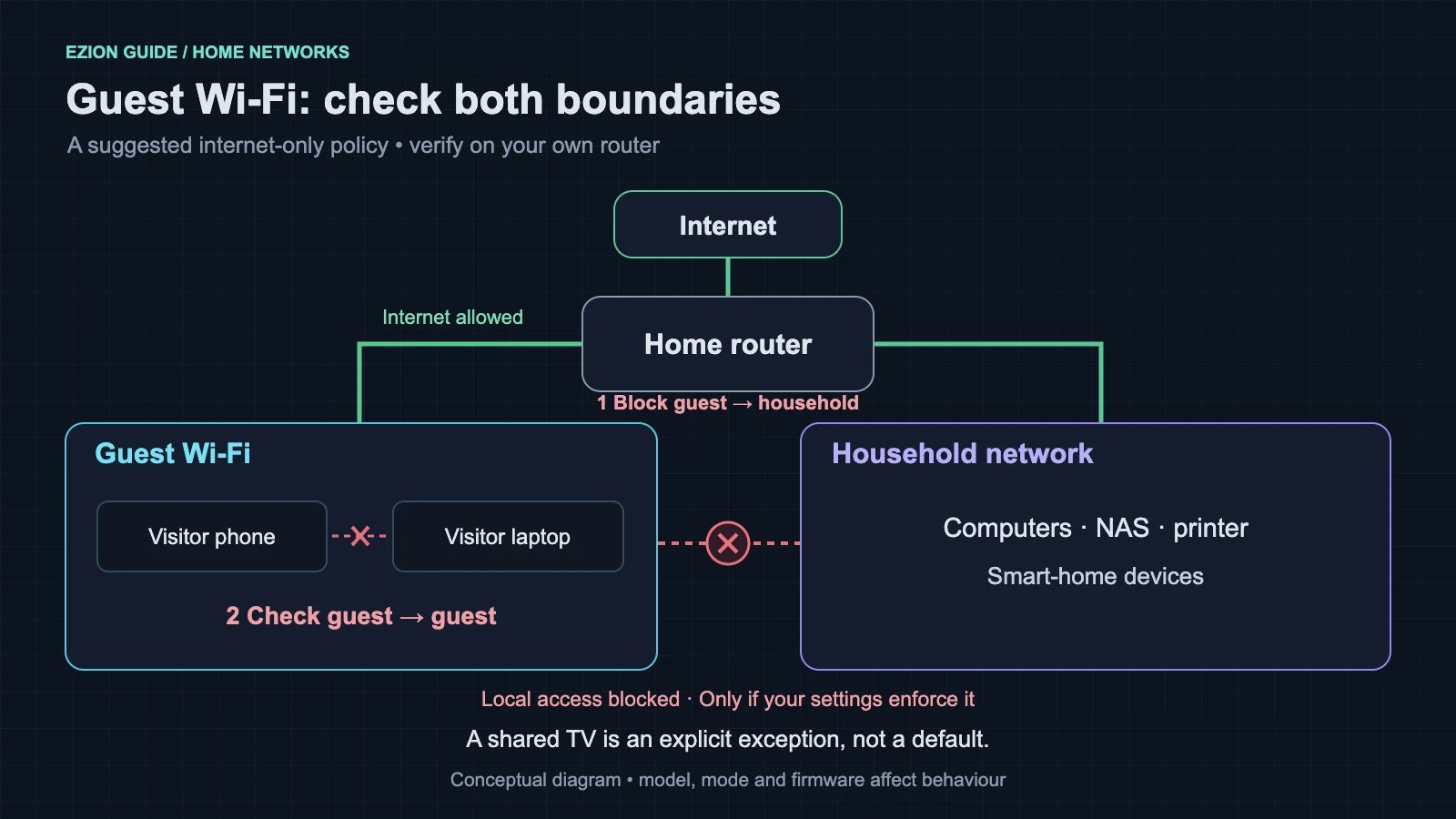
A visitor needs internet access, not access to your backup drive or printer. Guest Wi-Fi can provide that separation, but the name on the network list does not tell you which connections your router blocks. Some systems also let you share selected household devices with guests.[1][2]
This guide gives you a setup checklist and a repeatable way to check the result using devices you own. It is a documentation-based procedure, not a report of hands-on router testing. The tests are practical editorial recommendations; they are not a security certification.
Reviewed 19 October 2026.
Decide what guests should reach
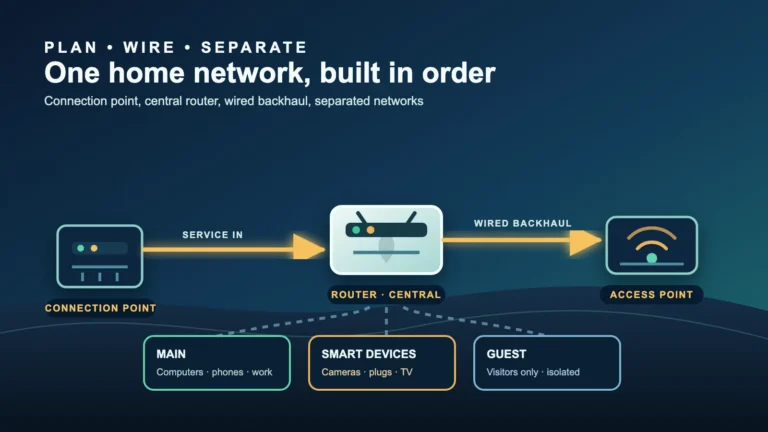
There are two separate questions: can guests reach your household network, and can guests reach one another? TP-Link documents separate controls for local-network access and communication between guests. eero documents blocking both, while Google Nest Wifi lets owners select shared devices. These are product behaviours, not a universal definition of guest Wi-Fi.[1][8][2]
| Connection | Suggested starting policy |
|---|---|
| Visitor to internet | Allow |
| Visitor to household computers, storage and printers | Block |
| Visitor to another visitor | Block unless deliberately needed |
| Visitor to a shared TV | Optional exception, tested separately |
This table is an editorial starting point for an internet-only visitor network. Write down any exceptions before changing settings. If you need the broader layout first, see our home network setup guide.
Check the router, not just the network name
Record the model, hardware revision, firmware version and operating mode. A mesh unit behind an ISP router may be operating as an access point rather than a router. TP-Link’s Deco instructions distinguish automatic guest/main separation in router mode from an Allow Local Access control in AP mode, with features varying by model and software.[3]
A different SSID is a different advertised network name; it does not, by itself, document an access policy. DNS translates names into IP addresses. Changing a DNS provider is therefore not evidence that guests cannot contact a household device directly. Our practical conclusion: check access controls and actual connections, not names alone.[7][6][1]
Read the documentation for your exact model and mode. Look for guest-to-LAN access, client isolation, shared-device exceptions and mesh support. If the documentation does not explain one of these, mark it unknown rather than assuming that a switch labelled “Guest” covers everything.
Set up an internet-only starting point
- Back up the router settings and check for firmware updates using its official app or administration page. Apple recommends both before configuration changes.[7]
- Enable the guest network with a recognisable name and its own strong password. Choose WPA3 Personal when supported, or WPA2/WPA3 Transitional for compatibility. WPA2 Personal with AES is a fallback; avoid open networks, WEP and TKIP.[7]
- Disable guest access to the local or main network. If a separate “allow guests to see each other” option exists, disable that too. The example TP-Link interface treats them independently.[1]
- Remove shared-device exceptions initially. Google Nest Wifi exposes these under Shared devices; reintroduce only the specific device you intend visitors to use.[2]
- Save, reconnect a test device and confirm the selected network. Keep a household device on the main network so you can still manage settings.
Menu names in an older setup guide are not a reason to select outdated encryption. Use the vendor page to locate access controls, and check the available security modes separately.[1][7]
Test a known working connection first
Use your own laptop or phone as the “visitor”. Only test devices and networks you control. Choose a harmless local service that you already use, such as a printer’s status page or a NAS login page. Do not enable internet-facing access or turn off a device firewall to make this exercise work.
While on the main network, open that service using its local address and record the address, protocol and port if shown. Confirm it loads now. You need this baseline: a page that never worked cannot tell you whether the guest network blocked it.
Then move the test device to guest Wi-Fi. Temporarily disconnect mobile data and any VPN for this local comparison, if your device policy permits; restore them afterwards. Verify the SSID and open a fresh public webpage. Avoid using a cloud app as the only local-access test.
| Check from guest Wi-Fi | What to record |
|---|---|
| Public webpage | Internet works, or troubleshoot connectivity first |
| Same known local printer or NAS address | Loads, blocked or inconclusive |
| Router’s local management page | Whether the administration interface is exposed |
| Second guest device’s known local service | Whether guest-to-guest communication works |
| Any approved shared device | Whether only the intended exception works |
If the NAS login page loads, you have demonstrated reachability even without logging in. If a connection fails, repeat the main-network baseline afterwards. A sleeping printer, changed address or stopped service can otherwise resemble successful isolation. A failed ping alone is inconclusive; test the actual service.
For the guest-to-guest check, use two devices with a service you can first confirm works between them on the main network. If you cannot establish that baseline safely, record “not tested”. Do not turn an unknown result into a pass. These checks sample specific paths; they do not prove every protocol is blocked.
Repeat where the network changes
As an editorial precaution, repeat your checks near each mesh node or extender and on each guest band you use. If you cannot identify the serving node or band, note that limitation. Include a wired household target if available, since TP-Link’s local-access setting explicitly covers LAN-port devices as well as the main wireless network.[1]
If you use IPv6 and can identify a local service’s IPv6 address, test that route too; otherwise record IPv6 as untested. Record model, mode, firmware, test date, target, serving node and outcome. Retest after firmware updates, mode changes or adding mesh hardware. Our Ethernet versus mesh guide covers layout choices; this checklist checks access rather than speed.
When printing, casting or smart-home control breaks
Isolation can conflict with local device communication. Google’s streaming-device troubleshooting says AP/client isolation can prevent setup. eero specifically says a guest-network laptop cannot communicate with a speaker on either its guest or main network.[5][8]
Do not fix a missing TV by enabling unrestricted LAN access without considering the trade-off. Where supported, try a selected-device exception and repeat the household-access tests. Otherwise, keep the controller and device on an appropriately trusted network, or leave guest casting unavailable. Google Nest Wifi’s selected sharing is one implementation, not a feature every router has.[2]
Moving every smart-home device onto the visitor network is not automatically a useful design. Decide which devices need local controllers and which functions you are willing to lose. For the wider maintenance checklist, see how to secure smart-home devices.
Finish with a clear result
- If household services remain reachable, recheck local-access switches, exceptions, operating mode and the connected SSID. Stop describing the network as isolated until you resolve the mismatch.
- If only another guest is reachable, investigate client-to-client isolation separately from LAN isolation.
- If the internet fails too, fix connectivity before interpreting local failures as a security result.
- If all tested household paths fail while their baselines work, record “blocked on tested paths”, not “fully secure”.
Share the guest credentials rather than the household password. Keep your test record with the router settings, and review access when your household’s needs change. A useful outcome is knowing exactly which connections you checked and which remain unknown.
Related guides
- Matter vs Thread: A Smart-Home Compatibility Checklist
- Is Your Router Still Supported? A Firmware Check Guide
Sources
- How to create a network for guests on the TP-Link Wi-Fi Routers
- Create, edit & share a Guest Wi-Fi network – Google Home and Nest Help
- How to Set Up a Guest Network on TP-Link Deco
- Can't establish a Wi-Fi connection to Chromecast or Google TV Streamer – Streaming Help
- What is DNS? · Cloudflare Learning Paths
- Recommended settings for Wi-Fi routers and access points – Apple Support (AU)
- How do I share my eero network with guests? | eero Support