Your router may still stream films and handle video calls after its manufacturer stops supplying security fixes. A working internet connection answers one question: does it connect? It does not establish whether the software is still maintained. Australian government guidance explicitly distinguishes continued operation from continued support.[1]
This check helps you choose between keeping and updating the router, asking for clarification, or arranging a replacement. It is a support-status exercise, not a reason to buy the newest Wi-Fi standard. Set aside the product’s age and start with its exact identity.
Reviewed 19 October 2026. Check the linked lifecycle pages again when making your decision.
1. Identify the box and who maintains it
Find the model on the underside label, then open the manufacturer’s documented management page or app to record the installed firmware. Include the hardware revision, purchase region and any ISP branding. Similar names are not enough: TP-Link’s update instructions require matching the hardware version and purchase-region firmware.[2]
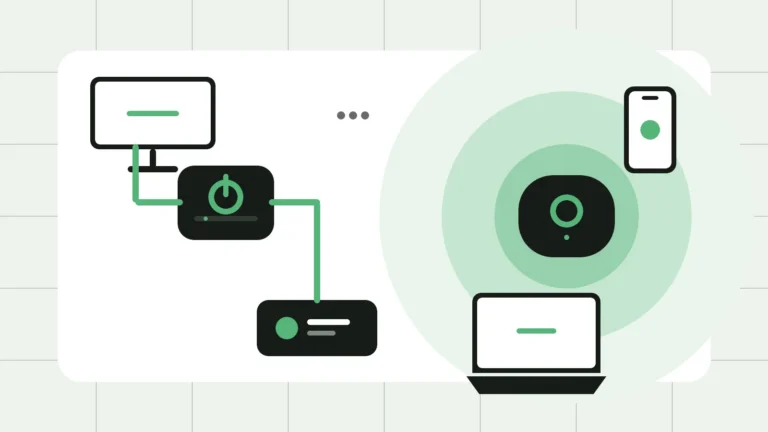
Photograph the label for your private records, but do not post it publicly: crop out passwords, QR codes and identifiers before asking for help. Record each mesh unit separately. If you have several boxes, sketch which connects to the incoming service and which provides Wi-Fi. Use our home network setup guide if those roles are unclear.
For ISP-owned, loaned or ISP-managed equipment, ask the provider who deploys firmware and who authorises a swap. Do not assume an ISP-supplied router is still owned by the ISP, or that retail firmware is appropriate. Ask whether updates are automatic, what the supported version is, whether replacement is covered, and whether you must return the equipment. Keep the answer or ticket number. Do not reset or replace a separate nbn connection box as part of a router swap.
2. Establish support status from evidence
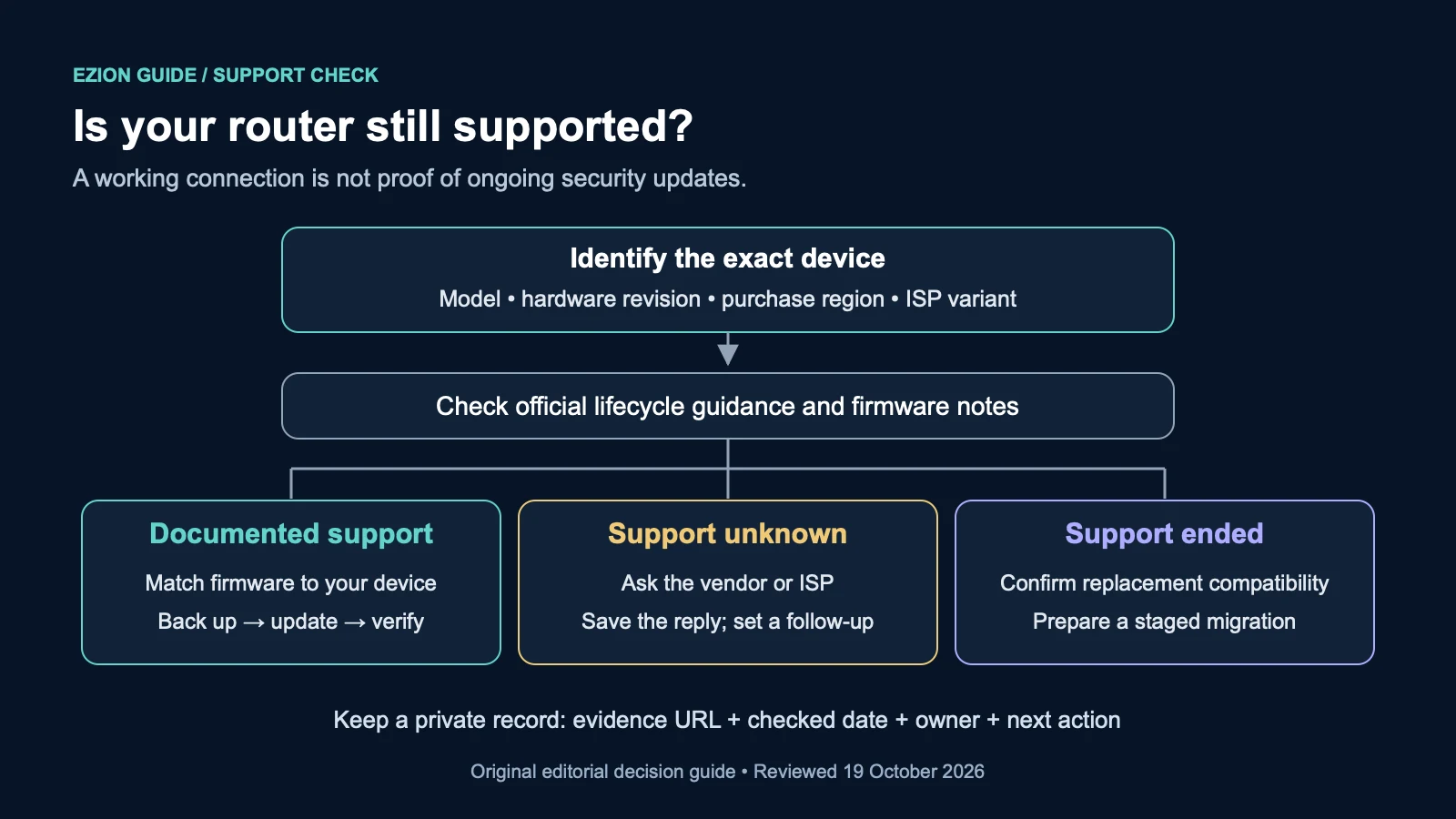
Use the official regional support page, security advisories and lifecycle notices for that exact model. A firmware download proves a file is available; it does not promise future patches. Likewise, an old release date alone does not prove support has ended. Look for an explicit statement about security updates, not just sales availability.
Read each vendor’s definitions. ASUS, for example, describes its listed end-of-life models as no longer manufactured or updated with firmware and documentation, while saying an existing hardware warranty is unaffected. Warranty and firmware maintenance therefore need separate checks.[3]
- Documented support: an applicable policy or written vendor/ISP confirmation establishes ongoing security maintenance. Record any stated end date and conditions.
- Documented end of support: a notice confirms security maintenance has ended for your variant. Schedule replacement; Australian guidance recommends upgrading products too old to receive updates.[1]
- Unknown: the model is missing, the revision is unclear, or the available page only lists downloads. Request written clarification. Do not silently relabel this as supported or unsupported.
There is no universal replacement birthday in this checklist. Choose a follow-up date for unanswered enquiries and a practical migration date if support has ended. If a security advisory gives model-specific urgent instructions, follow those rather than waiting for your routine review.
3. Fill in a private support worksheet
Copy this original worksheet into a local note. Keep credentials in your password manager, not in a worksheet you might send to support.
| Record | Your entry |
|---|---|
| Device identity | Model / hardware revision / region / ISP variant |
| Software | Installed firmware / applicable release / release date |
| Evidence | Official URL or support ticket / checked date / relevant wording |
| Decision | Documented support / documented end / unknown; why |
| Responsibility | Owner / update manager / person arranging replacement |
| Recovery | Private backup location / ISP settings reference / help contact |
| Next action | Update, enquire or migrate / responsible person / review date |
4. Update safely if the device remains supported
Use the official procedure for your model. Read release notes before starting, especially requirements for intermediate versions, configuration resets or restoration restrictions. Back up the configuration if the vendor supports it, and record essential settings separately. TP-Link advises a backup or written settings, a wired connection for applicable models, and uninterrupted power during an upgrade.[2]
Arrange a quiet maintenance window and keep the instructions accessible offline. Download only the correct official image, or use the manufacturer’s documented in-device updater. Do not choose a nearby model because its version number looks newer. Let installation and reboot finish before testing. If something stalls, use the model’s recovery instructions or support service rather than repeatedly cutting power.[2]
Afterwards, read back the installed version and compare it with the intended release. Check internet access and essential services, then record the result. An updater reporting that no update is available is not, by itself, a lifecycle commitment.
5. Prepare the replacement without copying old problems
The following migration sequence is an editorial checklist, not a universal vendor installation procedure. Confirm the replacement’s support policy and compatibility with your service before buying or borrowing it. Australia’s different access arrangements need different setup paths: Aussie Broadband publishes separate instructions for DSL and Ethernet-WAN services, plus separate VoIP guidance. Use your own ISP’s settings, not another provider’s values.[4]
- Ask about connection type, authentication, VLAN requirements and any provider-managed telephone service. If a household relies on a medical alarm or other critical service, confirm its requirements with the relevant provider before disconnecting anything.
- Record Wi-Fi names, guest-network settings, address reservations, custom DNS and any genuinely needed forwarding rules. Store passwords, configuration exports and screenshots privately with restricted access. Do not upload them to a public forum or this site’s comments.
- Keep the old configuration for recovery, but do not assume its backup imports into a different model. Re-enter only settings you understand and still need; confirm compatibility before restoring any file.
- Arrange an alternative way to contact support during an outage. Photograph the cable positions privately, label the WAN cable, and choose a time when somebody can test the household’s essential devices.
6. Swap in stages, then verify
- Prepare the new router using its manual. Install applicable updates, set a unique administrator password and configure the provider connection. Keep the old unit disconnected during the actual cutover rather than improvising a two-router arrangement.
- Test one computer first, preferably over Ethernet. Confirm you can sign in to the router and load several websites. Then test Wi-Fi on a phone, followed by mesh nodes, printers, smart devices and any home telephone service.
- Check the firewall and guest-network separation. Australian guidance recommends keeping the router updated, disabling remote management and UPnP, and using the strongest available Wi-Fi encryption.[6] Check dependencies before changing settings that existing devices use; see our smart-device security guide.
- Record what passed and what failed. If the new connection fails, check cabling and ISP settings before changing several things at once. Use provider support. Reconnecting the old router may restore service temporarily, but it does not resolve its support status; avoid treating an unsupported fallback as the finished solution.
Only retire the old unit after the new setup passes the household’s tests and any return instructions are clear. Follow its documented reset and account-unlinking procedure before return or disposal; Australian guidance also recommends unlinking connected services when disposing of smart devices.[5] A factory reset clears settings; it is not a security patch or a renewal of vendor support.
Do not treat alternative firmware as an automatic cure. Any such project needs its own exact-device compatibility, maintained-release and recovery checks; this checklist does not certify it. Finish with a saved support record, a working recovery contact and a dated next review. Compare Wi-Fi 6 and Wi-Fi 7 separately if performance also needs attention.
Related guides
- Guest Wi-Fi at Home: Set Up and Test Network Isolation
- Matter vs Thread: A Smart-Home Compatibility Checklist