Reviewed 19 October 2026. This is a buying checklist based on official documentation, not a hands-on product test.
A smart bulb can carry a Matter badge and still be the wrong purchase for your home. Before paying, identify its network connection, the controller you will use and the functions you expect in that controller’s app. Google explicitly warns that platforms add support for Matter device categories at different times.[4] Treat compatibility as a match between specific products, not a promise attached to one logo.
Matter and Thread do different jobs
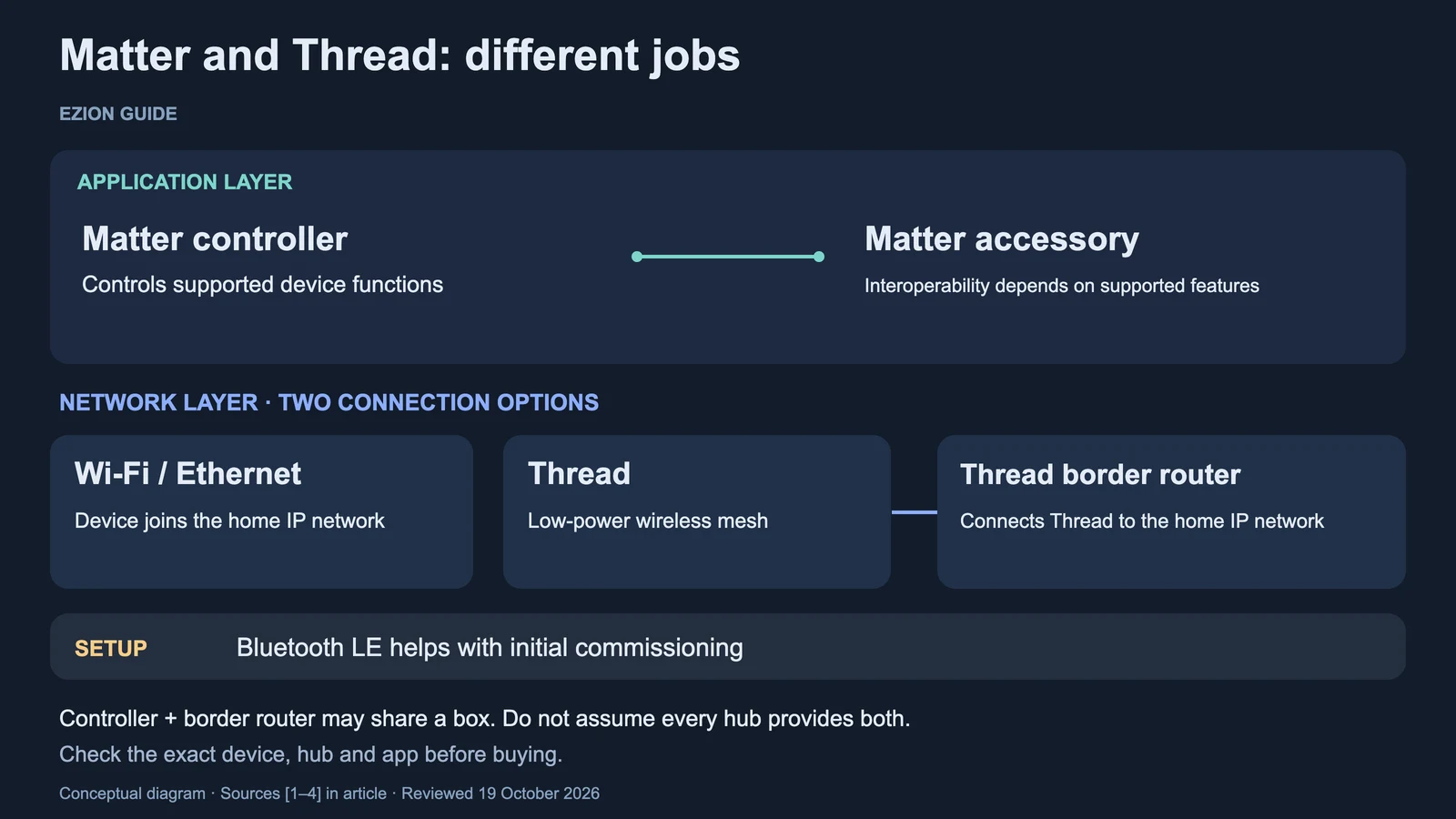
Matter defines how compatible smart-home devices communicate at the application level. It uses IP networking rather than replacing your home network. The Connectivity Standards Alliance describes Matter running over Wi-Fi and Thread, with Bluetooth Low Energy used for commissioning, the initial setup process.[1] Its FAQ also includes Ethernet among the supported network connections.[2]
Thread is a low-power wireless mesh network. A Thread border router passes traffic between that mesh and the rest of your IP network; it does not translate one brand’s device commands into another’s.[3] A Matter-over-Thread sensor therefore needs both a usable network path and a platform that understands the functions you want.
Bluetooth mentioned in setup instructions does not mean Bluetooth is the device’s normal Matter control connection. Read the separate network specification: Wi-Fi, Thread or Ethernet.[1][2] Equally, a Thread label alone does not establish Matter support. Check both specifications instead of treating the names as interchangeable.
Separate the controller from the border router
A Matter controller handles control of Matter accessories. A Thread border router handles network traffic. The two roles can live in one product, but the word “hub” does not guarantee both. Google’s official preparation guide distinguishes hubs for Wi-Fi devices from hubs that also provide Thread border routing.[4]
A Wi-Fi Matter device does not need a Thread border router for its Wi-Fi connection. A Matter-over-Thread device needs a route from Thread to the controller’s network for the usual hub-based arrangement.[2][3] Write down the exact model and generation of any existing hub; a family name is not enough.
Do not turn that advice into “every Apple user must buy a hub before pairing anything”. Apple’s pairing guide documents local, hub-free control on supported iPhones, including specific Thread-capable configurations.[5] Its separate hub guide explains the role of a home hub in remote access, sharing and automation.[8] For a shared household, verify those requirements separately from what one phone can do locally.
Complete this device-to-home worksheet
Copy this worksheet for each proposed purchase. Fill the middle column with exact names, then save a manufacturer or platform support link in the last column. A retailer’s broad “compatible” label is not a substitute for the specific function you need. Leave unanswered cells visibly blank rather than assuming they will work.
| Check | Your answer | Evidence to save |
|---|---|---|
| Device identity | Model, regional variant, required firmware: ____ | Manufacturer’s exact product page |
| Matter connection | Wi-Fi / Thread / Ethernet / via bridge: ____ | Network specification and setup guide |
| Main platform | App, account owner and phone: ____ | Platform’s setup requirements |
| Controller role | Exact supported hub or local-phone arrangement: ____ | Platform support page |
| Thread role | Border router model, or not needed: ____ | Explicit border-router specification |
| Required functions | Write each action and intended app: ____ | Device-type and feature support |
| Second platform | Sharing method and its own requirements: ____ | Multi-admin instructions |
| Home readiness | Power location, network settings, update route: ____ | Installation and network documentation |
Use a concrete requirement such as “show contact-open status in my chosen app” rather than “supports sensors”. For a plug, separate switching power from displaying energy measurements. For a light, separate on/off control from any special effects. These are questions to verify, not claims that every product supplies those functions. Google’s developer reference lists device types and control surfaces separately and notes incomplete support.[7]
Check functions, not just successful pairing
Adding a device to an app is only one acceptance test. Google’s documentation gives a useful warning: its On/Off Light Switch device type can be commissioned, yet the Google Home app does not expose the binding needed to configure it to control another Matter device.[7] This refers to that specific Matter device type, not every wall switch.
Before buying, ask the seller: “Does this exact model perform this action in this app today?” Keep the reply with the worksheet. If an essential feature needs the manufacturer’s app, decide whether that extra app is acceptable. CSA explicitly allows vendor apps to provide advanced configuration and differentiated features.[2] Do not budget around a promised future software update.
Check the network and the power plan
For Google Home, the official setup requirements include IPv6 enabled on the home router for the home network.[6] Check the router’s documentation before changing settings. The relevant question here is local device communication; this is not a recommendation to buy a different internet plan. For broader preparation, use our home network setup guide.
Thread’s mesh does not mean every battery sensor extends coverage. Thread Group distinguishes mains-powered mesh extenders from battery-powered sleepy devices.[3] Ask whether the particular powered product you are buying provides routing; do not infer it merely from a wall plug or assume adding battery sensors will fix a coverage problem.
Choose an everyday power location for the hub or border router. Apple specifically includes being at home, connected and powered on in its hub troubleshooting checks.[8] Record which components would lose power if someone switched off a powerboard. This is a planning exercise, not a guarantee of operation during an outage.
Multi-admin is sharing, not one merged account
Matter multi-admin lets an accessory participate in more than one platform. Google’s instructions use a linking flow or newly generated pairing code to add an already configured device to another app.[6] Follow that flow instead of assuming the original packaging code is the correct next step.
Check each platform’s account and controller requirements separately. Apple requires the relevant Apple Account and explains that removing an accessory from iCloud Keychain differs from removing a connected service.[5] Keep a simple list of who owns each home, which services have access and who can remove the device. Do not assume sharing also copies room names or household routines; verify any automation you intend to use in each app.
Local Matter control also does not mean every part of the service works without internet. Google distinguishes local commands at home from remote commands routed through its cloud and home hub.[6] Ask separately about away-from-home access and any manufacturer account needed for your chosen features. Our smart-home security checklist covers the wider account and update decisions.
Make one small purchase before expanding
Consider a hypothetical household choosing a Thread contact sensor. The worksheet should name a supported controller, a border router and the app that will display the required sensor state. If any is unknown, pause the order. A Wi-Fi Matter plug removes the Thread-border-router question for that device, but still leaves the controller and feature checks.
Buy one unit first. During the return period, check initial setup, the exact controls you listed, access from each intended household account and any second platform. If remote access matters, test it separately. Keep the setup code somewhere private and record the reset instructions. These are suggested acceptance checks; Ezion has not performed them on a particular product. Expand only after your own worksheet has answers rather than assumptions.
Related guides
- Guest Wi-Fi at Home: Set Up and Test Network Isolation
- Is Your Router Still Supported? A Firmware Check Guide
Sources
- Build With Matter | Smart Home Device Solution
- Matter FAQs | Frequently Asked Questions – CSA-IOT
- What is a Thread Border Router and How is it Different from a "Hub" or a "Bridge"
- Prepare your smart home for Matter – Google Home and Nest Help
- Pair and manage your Matter accessories – Apple Support (AU)
- Set up, manage, and control Matter-enabled devices with Google Home – Google Home and Nest Help
- Supported device types | Matter | Google Home Developers
- Set up your HomePod, HomePod mini, or Apple TV as a home hub – Apple Support